Somewhere in the blocky wilds of Minecraft Legends, a well-meaning voice is reading every menu aloud while a player just wants to build a banner and herd a few zombies. That voice is the Narrator, and in 2026 it remains one of the game’s most useful accessibility features — and, for some adventurers, one of the easiest ways to lose their train of thought. The good news? Silencing it is less dramatic than fighting a piglin boss. No secret shrine, no rare resource, no ancient portal required. Just a quick trip through the settings menu and a toggle that behaves exactly as advertised.
What the Narrator Is Doing in the Overworld
The Narrator is a text-to-speech feature in Minecraft Legends. It reads on-screen text aloud, including menus, chat boxes, and other interface elements, for players who need reading assistance or have visual impairments. In other words, it is an accessibility tool doing an honest job — not a spooky ghost haunting the inventory screen. It exists so that more players can enjoy the game, and that is a genuinely good thing.
Still, a player does not have to keep every helpful feature switched on. Maybe the voice clashes with the game’s music. Maybe it interrupts a carefully planned strategy session. Maybe the player simply prefers their Overworld with fewer unsolicited monologues. Whatever the reason, the game does not force anyone to listen. The Narrator can be switched off in seconds, and it can be switched back on just as quickly.
How to Turn Off the Narrator
The process is refreshingly simple. No cryptic quest, no hidden lever, no sacrifice to a suspicious altar. A player can follow this path:
-
🛠️ Open the in-game Settings in Minecraft Legends.
-
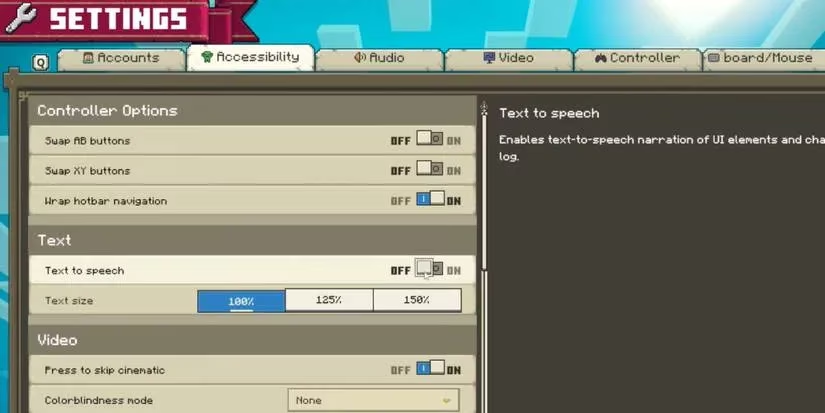
🧭 Navigate to the Accessibility tab.
-
📝 Locate the Text tab and find the Text-to-Speech option.
-
✅ Click on Text-to-Speech to disable the feature.
And that is it. The voice stops, the menus go quiet, and the player can hear the sweet sound of imaginary blocky wind. To bring the Narrator back later, the player follows the same path and switches Text-to-Speech on again. The setting is not a one-way door, which is excellent news for anyone who changes their mind after a particularly quiet mining session.
If the Narrator Should Speak, but More Softly
Not every player wants total silence. Some may appreciate the Narrator but find the volume a little too enthusiastic — the sort of voice that makes a simple menu feel like an epic proclamation. Fortunately, Minecraft Legends offers a middle ground. The player can keep the feature active and adjust its volume instead.
The path is just as friendly:
-
🔊 Open the in-game Settings.
-
🎚️ Navigate to the Audio tab.
-
📉 Locate Dialogue Volume under the Volumes tab.
-
🎧 Adjust the volume level to personal preference.
This is the polite compromise. The Narrator still speaks, but it no longer sounds like a creeper whispering directly into the player’s ear. It is accessibility without the accidental surround-sound experience.
| Goal | Where to Go | What to Do |
|---|---|---|
| Full silence | Settings > Accessibility > Text | Switch Text-to-Speech off |
| Softer voice | Settings > Audio > Volumes | Lower Dialogue Volume |
| Bring the voice back | Settings > Accessibility > Text | Switch Text-to-Speech on |
| Fine-tune later | Settings > Audio > Volumes | Raise or lower Dialogue Volume |
A Quick Word for the Accessibility-Minded
In 2026, accessibility features are not decorative extras; they are part of how modern games welcome more players. The Narrator is designed for players who rely on text-to-speech technology or who benefit from hearing menus and interface text read aloud. Turning it off is perfectly fine for those who do not need it. Leaving it on is equally fine for those who do. The important thing is that the choice belongs to the player.
A player who disables the Narrator is not rejecting accessibility. They are simply tuning the experience to their own ears. A player who keeps it on is not being old-fashioned. They are using the tools the game provides. Minecraft Legends is flexible enough to support both approaches, which is more than can be said for some bosses.
The Final Toggle
The Narrator in Minecraft Legends is helpful, optional, and easy to manage. To silence it, the player opens Settings, visits Accessibility, finds the Text tab, and switches off Text-to-Speech. To soften it instead, the player visits Audio, opens Volumes, and lowers Dialogue Volume. No quest markers, no crafting recipes, no dramatic boss fight. Just a few clicks and a quieter Overworld.
In a game about uniting mobs and defending homes, a little peace and quiet can go a long way. The Narrator may be a fine companion, but sometimes the best companion is the one who knows when to stop talking. 🎮